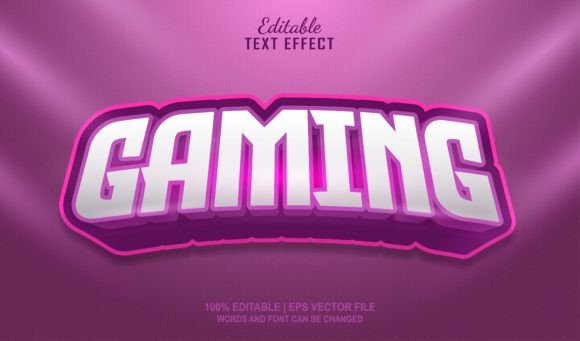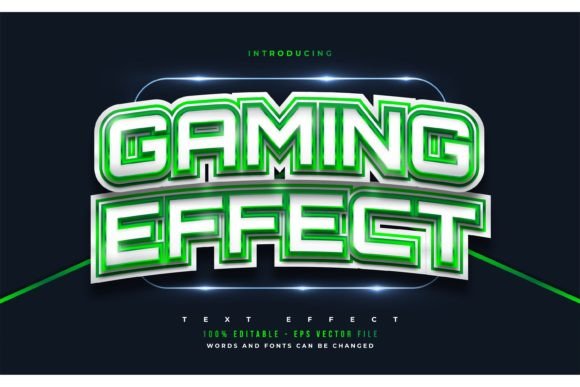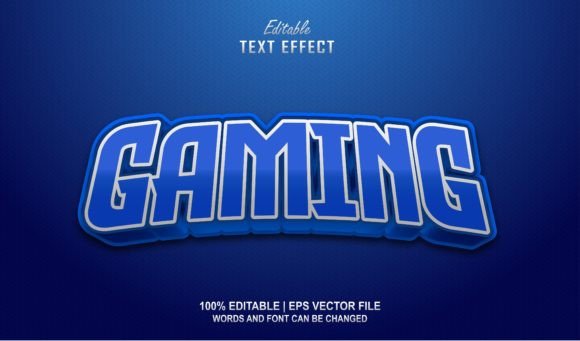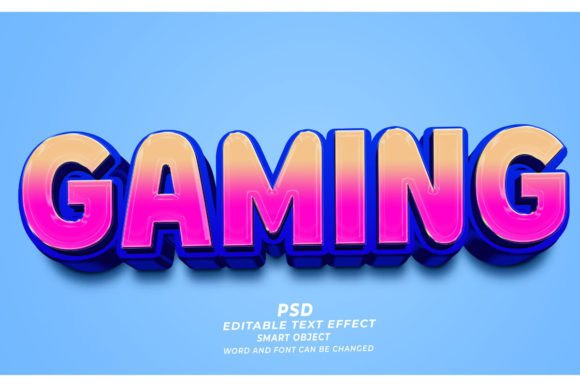
Gaming PSD 3D Editable Text Effect: A Flexible Resource for Visual Projects
Every designer, marketer, and content creator eventually hits the same wall: a project needs high-impact typography, but custom 3D lettering takes hours to model, light, and render. The Gaming PSD 3D Editable Text Effect is built to remove that friction. It’s not just a static graphic you drop into a layout. It’s a layered Photoshop file where text sits inside smart objects, meaning you double-click, type your own words, save, and the 3D render updates instantly—preserving reflections, shadows, and materials. Because the source file is 300dpi, it can travel from a twitch overlay to a printed book cover without losing clarity. This article looks at how to blend such a resource into real workflows, from early planning to long-term asset management, so you can use it effectively without the usual trial-and-error.
Understanding the Editable Smart Object Workflow
Photoshop smart objects are the engine behind the editable text effect. Rather than applying layer styles directly to a rasterized word, the design is built inside one or more smart object containers. When you open the file, you’ll see a clearly marked layer—often named something like “Edit Your Text Here”—that holds a placeholder word. Double-clicking that layer opens a separate document window where you type your own copy, save, and close. The main file then re-renders the 3D extrusion, lighting, and any custom particle or background effects automatically. This non-destructive approach means you can test multiple phrases, languages, or typefaces without rebuilding from scratch.
For anyone juggling tight deadlines, the real value is reproducibility. You aren’t inventing a 3D look each time; you’re applying a consistent visual language across different assets. And because the effect lives in a PSD, it integrates directly with the toolset you already use—layer comps, adjustment layers, blending modes, and exported slices all behave as expected. This familiarity lowers the barrier for entry, even for users who aren’t 3D specialists.
Where the 3D Text Effect Fits Into Your Design Process
Integrating a ready-made 3D text effect isn’t a single step; it’s a thread that can run through pre-production, active design, and final delivery. Recognizing where it fits helps you avoid rework and keep file sizes manageable. Below are three phases where this type of resource typically adds the most speed and polish.
Pre-Production and Planning
Before committing to a visual direction, you often need to show a client or team how a title, headline, or game logo will feel in context. Instead of rough wireframes with placeholder text, you can drop the Gaming PSD 3D Editable Text Effect into an early moodboard, change the wording to match the project, and export a quick PNG. Because the file is fully editable, you can adjust the font family inside the smart object to match brand guidelines—some teams even create multiple variants with serif and sans-serif options for comparison. This phase isn’t about perfection; it’s about validating whether a chunky, dimensional type treatment aligns with the overall tone.
When planning a multi-channel campaign, you might also use the smart object to generate a sizing guide. Drop the editable text into a mockup for a web banner, a T-shirt, and a KDP book cover simultaneously. Seeing how the 3D text reads across different scales and backgrounds early on prevents a situation where you discover readability problems only days before launch.
During Active Creation
Once the concept is approved, the same PSD moves into production. Here, the smart object workflow shines because you aren’t locked into the original placeholder text. For example, a YouTube channel rebrand might require the same 3D look on thirty episode thumbnail templates. Instead of manually recreating the effect thirty times, you save one master file, duplicate it for each episode, and update only the smart object’s contents. This keeps the metallic reflections, edge bevels, and shadow angles identical—something almost impossible to achieve manually with batch actions alone.
The effect also cooperates with other Photoshop tools. You might add a gradient map adjustment layer above the 3D text to tint it for a specific scene, or you could use a clipping mask to insert a texture that only affects the extruded side. Because the underlying structure is preserved inside a smart object, these tweaks remain non-destructive. If you later decide to change the word, the customizations stay intact as long as they are applied outside the smart object.
Post-Production and Final Polish
During export, the high 300dpi resolution of the source file becomes particularly important. For digital use, you can resample down without visible artifacts. For print, you have enough pixel density to output crisp results on merchandise, packaging, or large-format banners. When preparing final files, it’s wise to create a flattened copy of the PSD with the smart object already rasterized, especially if handing off to a printer. This avoids missing font warnings and ensures the 3D effect renders correctly on machines with different Photoshop versions.
Additionally, the post-production stage often involves generating multiple color variations for A/B testing or local market adaptation. Because the base text effect is built inside a smart object, you can simply duplicate the layer group, apply a hue/saturation adjustment, and export a new set of assets without touching the original text. This kind of flexibility turns a single purchase into a long-term, reusable asset.
Practical Integration With Other Tools and Assets
The Gaming PSD 3D Editable Text Effect with background doesn’t exist in a vacuum. It needs to sit harmoniously alongside vector graphics, photography, UI elements, or even video thumbnails. Since it’s a PSD, you can place it directly into larger compositions in Photoshop or import the smart object into applications that support PSD layers, such as Adobe After Effects or Affinity Photo. For video editing, some creators render the 3D text with a transparent background from Photoshop and then animate it in Premiere Pro with keyframes and motion blur—this keeps the text crisp while allowing the background to change dynamically.
When combining with vector shapes, the smart object’s ability to accept any shape—not just text—adds another layer of utility. You might paste a company logo’s silhouette into the smart object and get an instant 3D version of that mark, maintaining the same lighting and material as the rest of the campaign text. This trick saves days of 3D modeling while keeping brand identity consistent. The high resolution of the PSD means even complex curves stay smooth at enlargement, which is critical for trade show displays or vehicle wraps.
Maintaining Consistency Across Multiple Deliverables
One of the hardest challenges in multi-platform publishing is keeping typography visually identical everywhere. A gaming title on a Twitch overlay, a Discord banner, a steam capsule image, and a printed postcard all have different size requirements and color profiles. By using a single editable text effect as your source of truth, you can export each asset from the same smart object, knowing the extrusions, highlights, and shadows will match pixel-for-pixel.
Color management should be part of this workflow. When shifting between sRGB for web and CMYK for print, apply the conversion at the final export stage rather than inside the smart object. This preserves the vibrant RGB colors for digital while producing a print-ready version that respects the ink limitations. Some designers also keep a separate PSD copy with a slightly reduced specular highlight for print, since glossy effects can appear duller on paper than on screen. The editable nature of the effect lets you make these adjustments once and propagate them across all instances.
Organization and File Management for Long-Term Use
While ease of editing is a strength, poor file hygiene can lead to confusion when revisiting a project weeks or months later. A naming convention that includes the project, date, and version—for example, StreamThumbnail_3DText_V2.psd—helps you locate the correct file quickly. Storing custom text variations inside the same master PSD using layer comps is a space-efficient trick; each comp holds a different smart object state, so you can switch between “Episode 12” and “Episode 13” without maintaining separate files.
For teams, consider packaging the PSD along with the specific font files used inside the smart object, especially when working with custom typefaces. Even though the effect supports any font and size changes easily, missing font prompts on a different machine can break the editability temporarily. Saving the fonts in a shared cloud folder next to the PSD removes that obstacle. Also, document which settings were modified outside the smart object—drop shadows, color overlays, or noise—so anyone picking up the file later understands the overall structure.
Backup practices matter too. Because the file is high-resolution and may exceed several hundred megabytes with multiple layers, version control using cloud storage with file history (like Dropbox or Google Drive) prevents loss from accidental overwrites. Some users keep a “Golden Master” PSD that remains untouched, copying it only when starting a new project. This keeps the original smart object template pristine.
Avoiding Common Pitfalls When Customizing the Text Effect
Even with a straightforward just click and edit promise, a few mistakes can cause unnecessary headaches. The most frequent one is neglecting to save the smart object after editing. Photoshop requires you to close the smart object window and confirm the save; if you close without saving, the text reverts. Get into the habit of hitting Ctrl+S (Cmd+S on Mac) while the smart object window is active. The main document will then update almost instantly.
Another pitfall is scaling the smart object layer itself rather than adjusting the font size inside the smart object. Stretching the layer non-proportionally can distort the 3D extrusions and shadows, making them look unnatural. To change overall size, either change font size inside the smart object, or use the Transform tool on the layer while holding Shift to maintain proportions—but always double-check that edges and bevels haven’t become uneven. When in doubt, re-edit the smart object and let the effect rebuild itself.
Overlooking background integration is also common. The background included in some variants of this effect is designed to complement the gaming aesthetic, but it might not match your layout. Instead of fighting it, you can hide that layer entirely, or adjust its opacity and blending mode to blend with your own background. Because the background is typically a separate layer, you maintain full control. Use layer masks to reveal parts of the background only where needed, creating a more cohesive composition.
Extending the Effect Beyond Gaming Niches
The name “Gaming PSD 3D Editable Text Effect” suggests a primary audience, but the underlying look—metallic, high-contrast, dimensional—translates well into many other contexts. E-commerce sites use similar effects for flash sale banners. YouTube educators apply them to opening title sequences. Self-publishing authors find them useful for book cover design on platforms like KDP, where a standout title can increase click-through rates. The key is to adapt the materials and colors without rebuilding everything.
For a corporate presentation, you might tone down the chrome reflections and shift to a matte finish by adjusting the specular component in the smart object’s layer styles. For a fantasy book cover, you could add a gradient overlay that shifts the metal into a mystical purple-gold. Since the effect works with vector shapes, you can even use it for icons: drop a gear symbol into the smart object, and you have a 3D icon for an app interface. This versatility makes the PSD more of a flexible toolkit than a one-trick visual effect.
Long-term, you can build a library of custom smart object presets by saving different material finishes—brushed steel, neon glow, rusted iron—as separate PSD files. When a quick job requires a 3D treatment, open the closest preset, paste in the text or shape, and export. Over time, this approach reduces the cost per project and frees up time for more creative decisions instead of technical setup.
Integration with productivity-focused tools can further streamline this. For instance, you can automate batch exports of multiple text strings by using Photoshop scripts that duplicate the smart object, change the text via a data set, and save out PNGs. While that requires a bit of initial scripting, the editable smart object layer is the only thing that needs to change programmatically—everything else remains consistent. That level of automation is invaluable for marketing teams running split tests on headlines.
The Gaming PSD 3D Editable Text Effect ultimately succeeds when it lets you focus on message and layout rather than technical 3D construction. By treating it as a reusable component in a larger design system, you gain speed without sacrificing quality. The smart object architecture keeps edits clean, the 300dpi resolution keeps output sharp across media, and the Photoshop-native format keeps it compatible with your existing toolchain. Whether you’re designing the next game launch banner, a print T-shirt, or a series of online course thumbnails, the path from placeholder to polished final asset becomes straightforward and repeatable.